How to Configure the Local PosSystem API Helper with Launcher 2.0
The local PosSystem API Helper is currently in preview.
After reading this, you can set up and configure the local PosSystem API Helper within a Launcher 2.0 deployment.
Introduction
The local PosSystem API Helper is a Middleware component that exposes a local endpoint through which the POS System communicates with the fiskaltrust Middleware. It acts as a bridge between the POS System and the underlying Queue, and is required for Launcher 2.0 deployments.
The PosSystem API Helper must be part of the same CashBox as the Queue it is intended to serve.
As the local PosSystem API Helper is currently only supported on the Launcher 2.0 this setup does not work for France. If you're interested in running this in Austria reach out to us as the launcher 2.0 is not enabled per default there.
Add a Helper Local PosSystem API
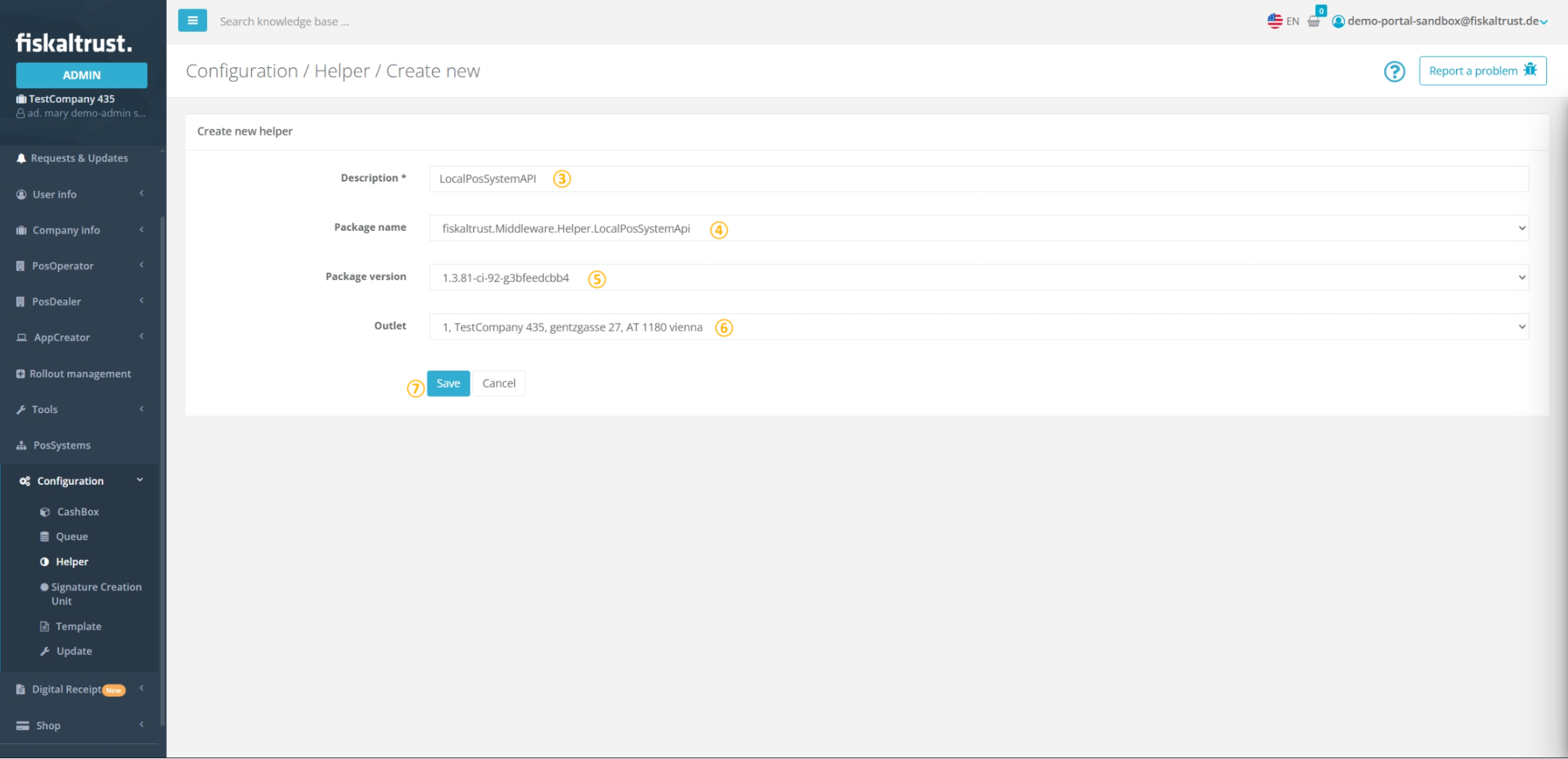
To add the local PosSystem API Helper, navigate to Configuration / Helper in the fiskaltrust Portal and follow the steps below.
Note that the following figures and steps are exemplary.
| steps | description |
|---|---|
 | Choose Configuration/ Helper to get to the Helper configuration. |
 | Click on +Add for creating a new Helper. |
 | Add or edit a name for your Helper at Description. |
 | Select fiskaltrust.Middleware.Helper.LocalPosSystemApi from the Package name drop-down. Note that this selection cannot be changed later. |
 | Select the latest Package version using the drop-down menu. |
 | You can select one of the available outlets with the drop-down menu. |
 | Save your changes. |
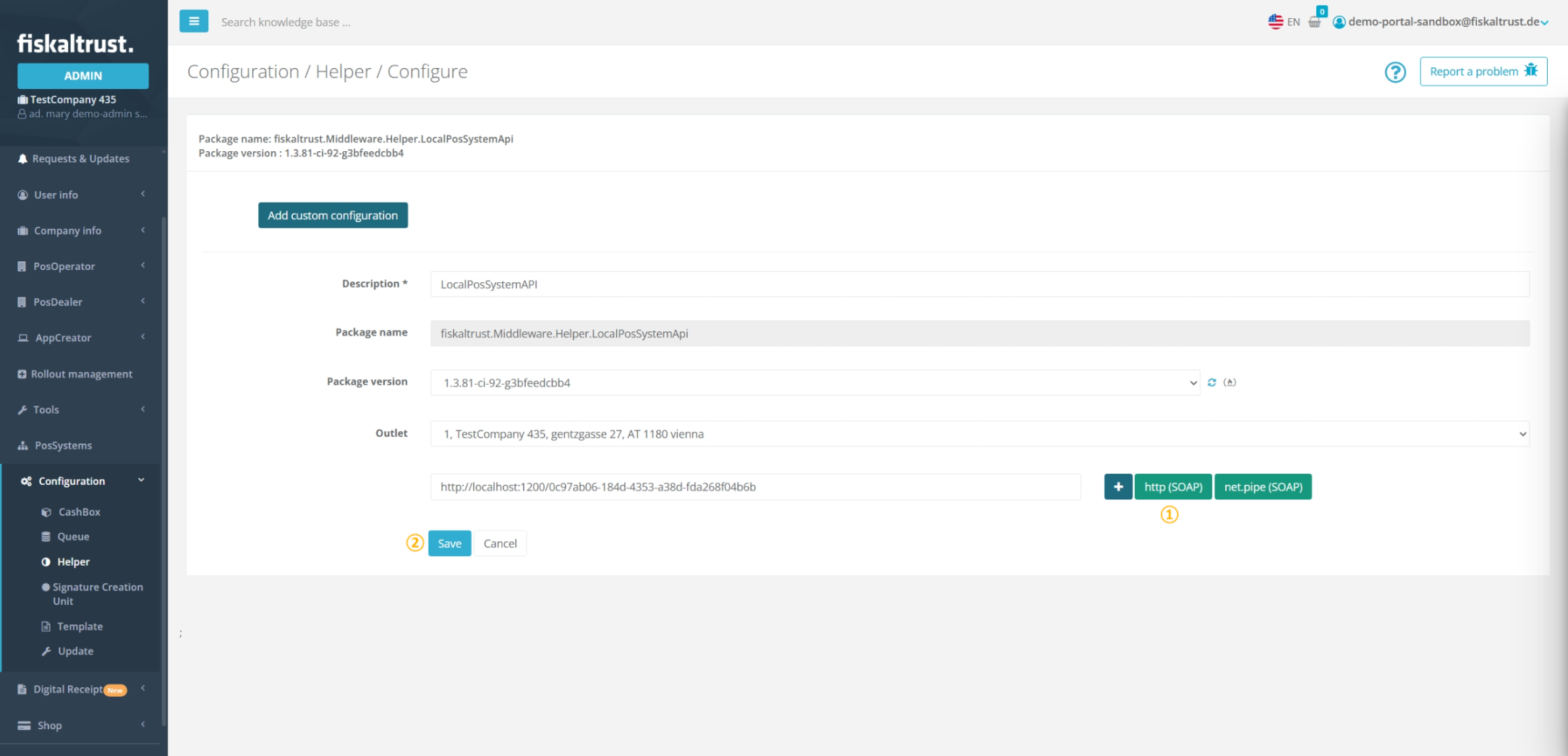
Once saved, a success notification will appear confirming that the Helper has been created. The configuration window for the new Helper will then open automatically, allowing you to proceed with the setup.
Configure a PosSystem API Helper
| steps | description |
|---|---|
| Click http to generate a URL through which the POS-System can access the Helper. You may also rename the URL to one of your own choosing. |
| Save your changes to return to Configuration/ Helper. |
Use a PosSystem API Helper
| steps | description |
|---|---|
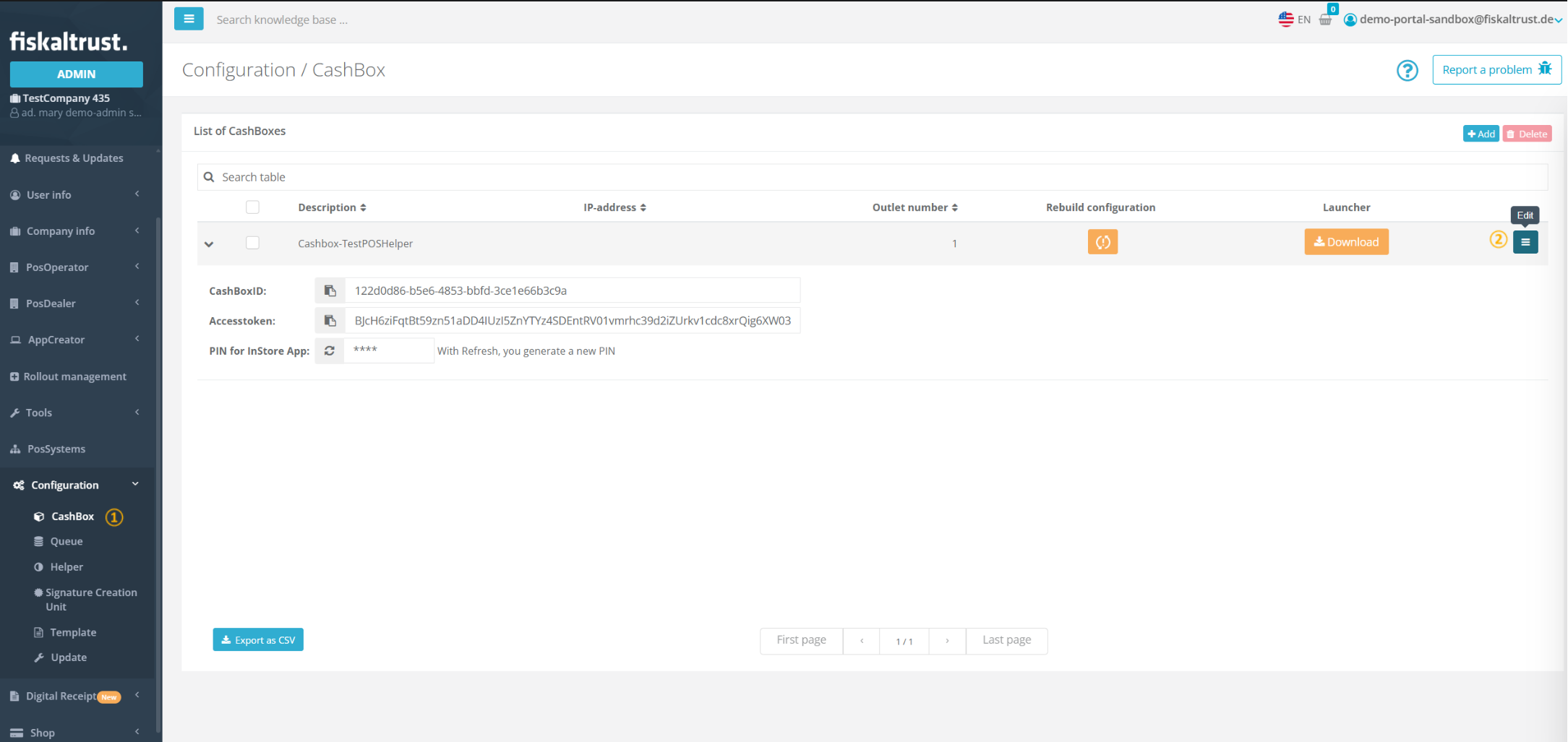
| Navigate to Configuration / CashBox and search for the desired CashBox. |
| Click Edit to open the CashBox configuration. |
| steps | description |
|---|---|
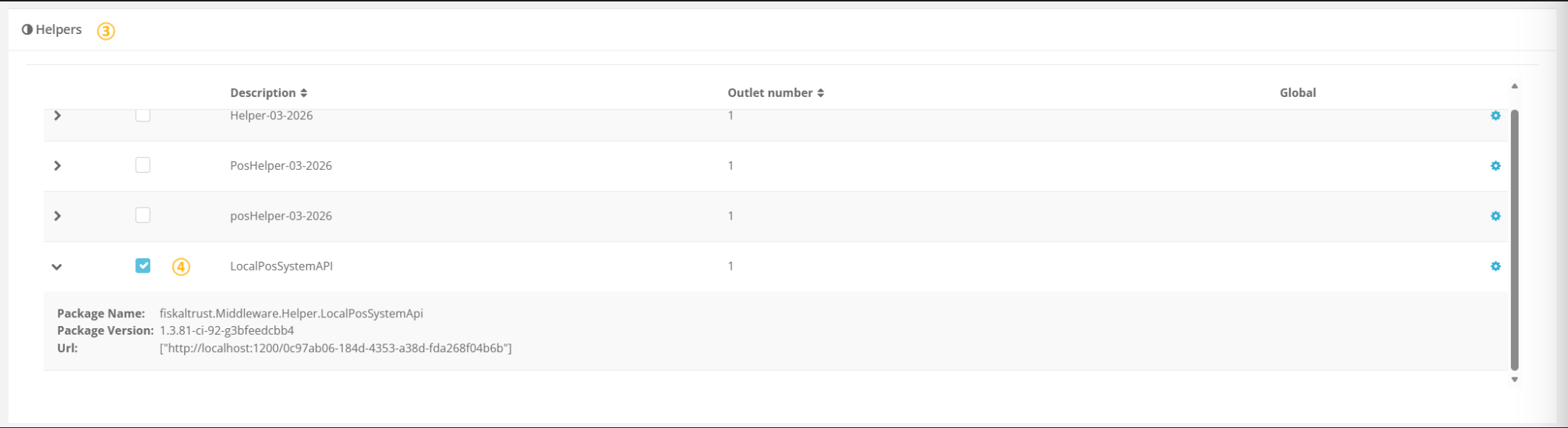
| Scroll down to the Helpers section and locate the PosSystem API Helper. |
| Activate the Helper by selecting its checkbox. |
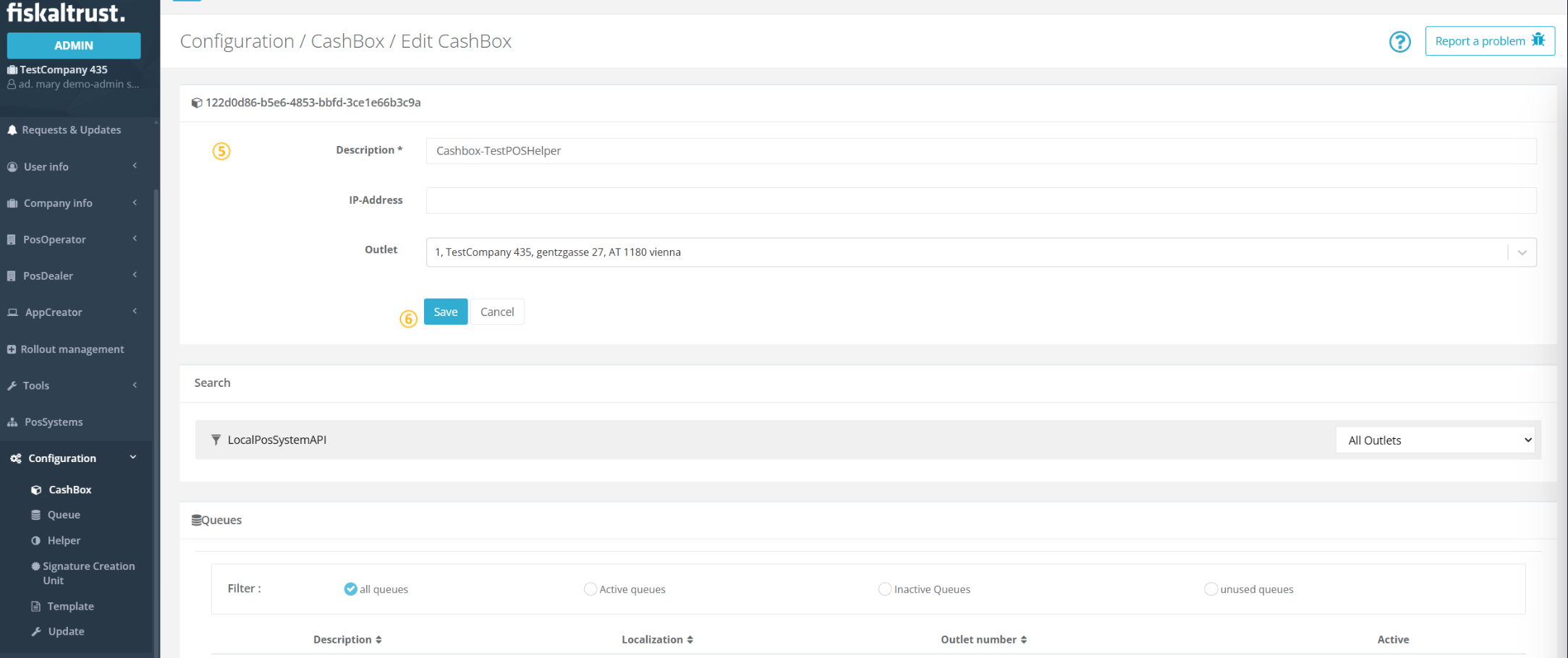
The same LocalPosSystemApi Helper can be used in multiple cashboxes.
| steps | description |
|---|---|
| Scroll back to the top of the page. |
| Save your configuration. |
Download Launcher
The minimum required Launcher version is 2.0.0-rc.25. When downloading a launcher the latest version is automatically downloaded.
| steps | description |
|---|---|
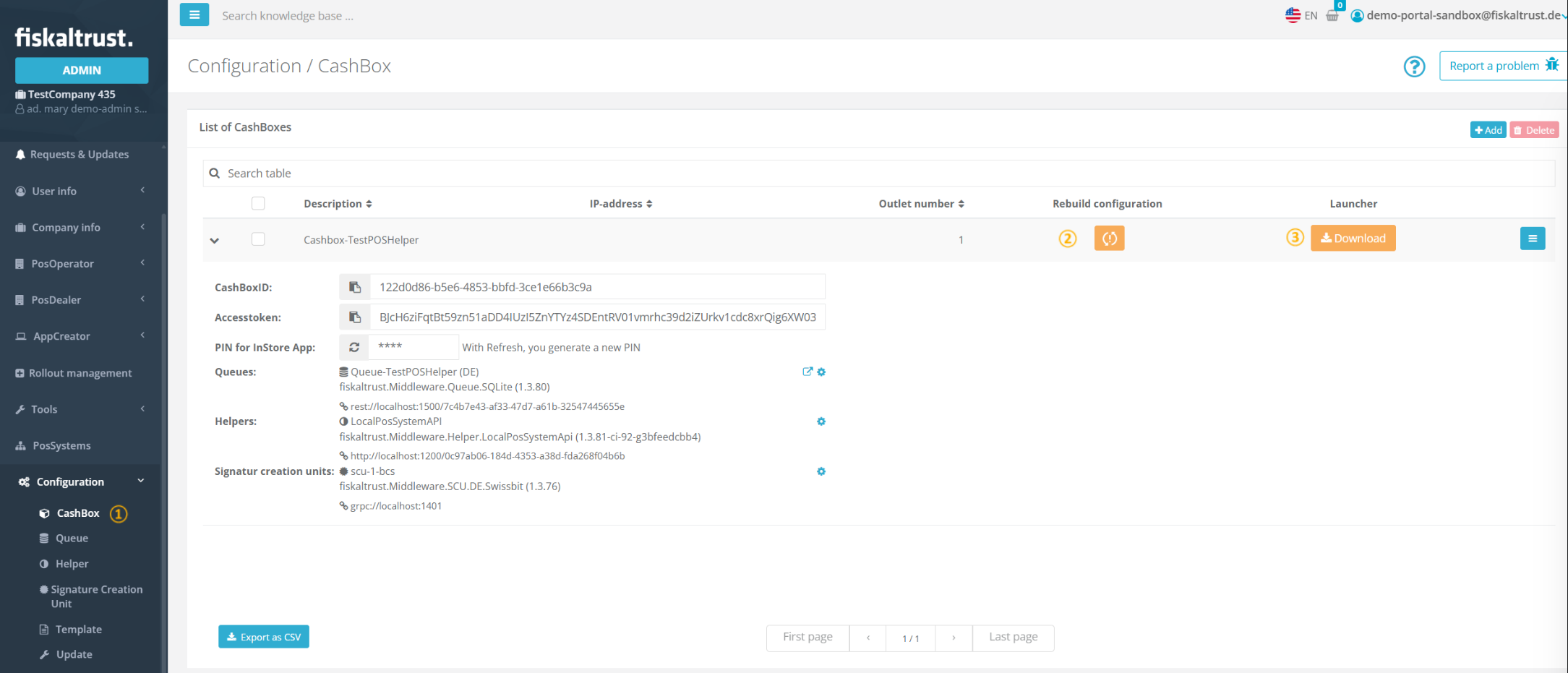
| Return to the Configuration / CashBox page. You should see the Helper URL you configured in the previous step. |
| Click Rebuild configuration and wait for the success confirmation. |
| Click Download and select the correct Version 2 Launcher architecture for your system. |
Deploy the CashBox
Once the Launcher package is downloaded, extract it and run launcher-test.cmd (or launcher-test.sh on unix based systems) to start the Middleware. For detailed instructions on starting the Launcher and installing it as a service, see Launcher 2.0 Getting Started.
Test the PosSystem API Helper
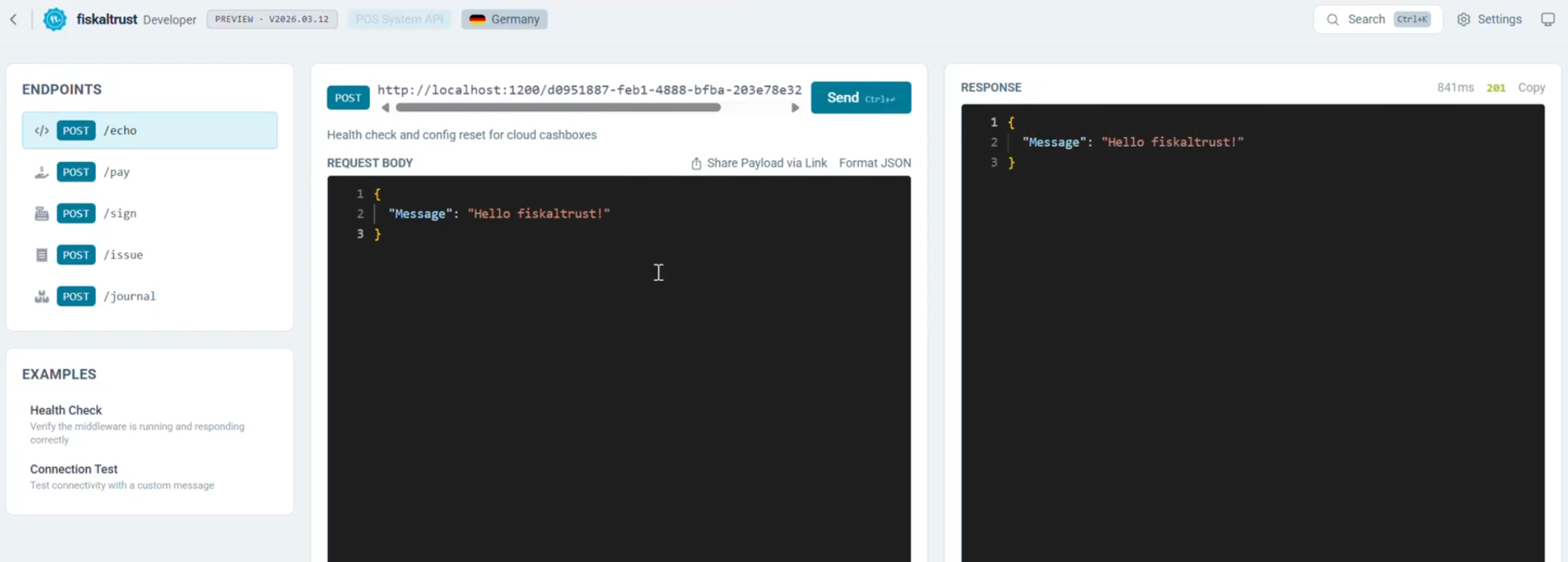
Once the Middleware is running, verify that the PosSystem API Helper is working correctly by sending a test request. The easiest way to do this is to use the fiskaltrust Developer Portal, which provides an interactive interface for sending requests to the Middleware and inspecting the responses.
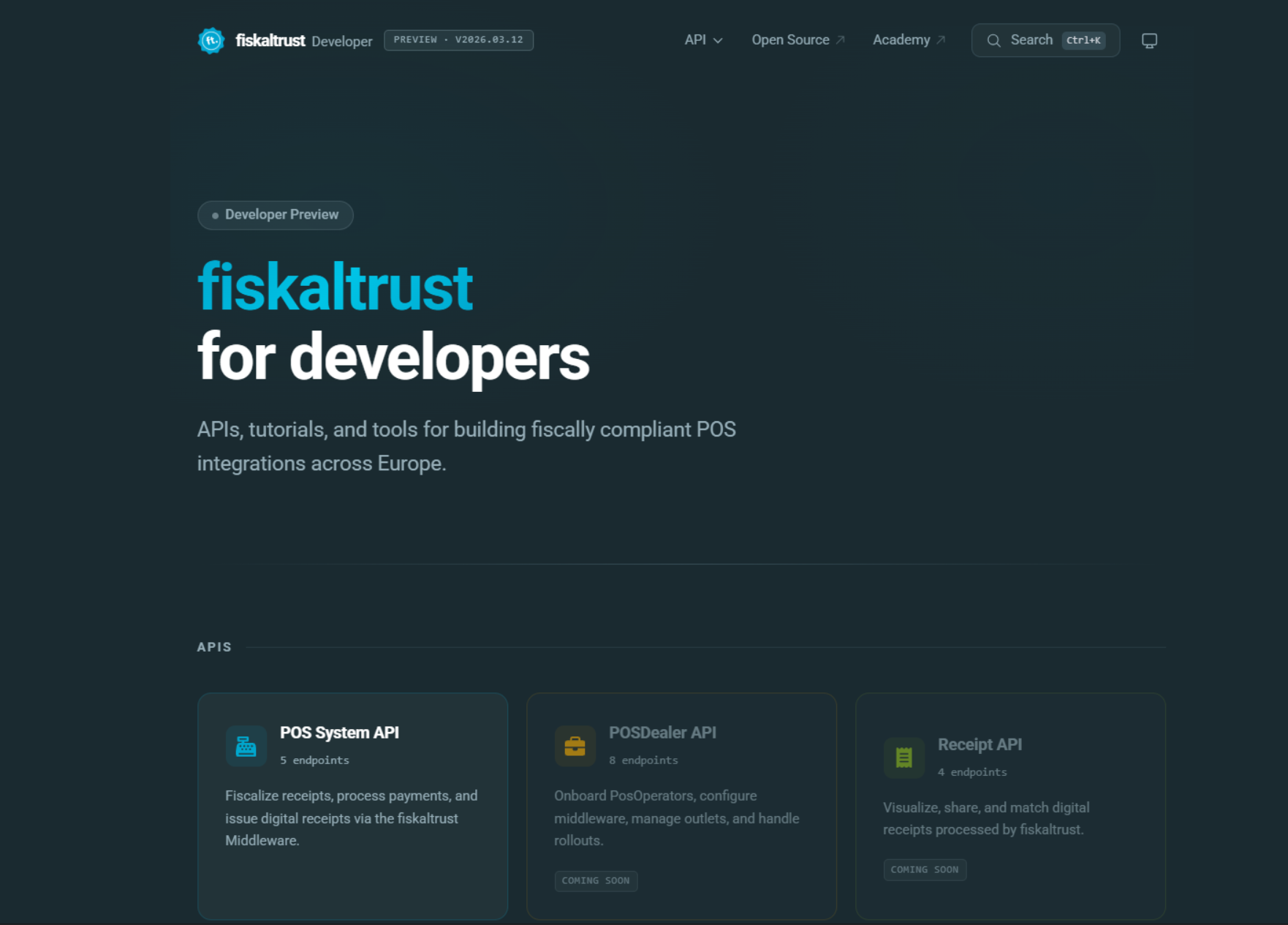
Select POS System API from the available options.
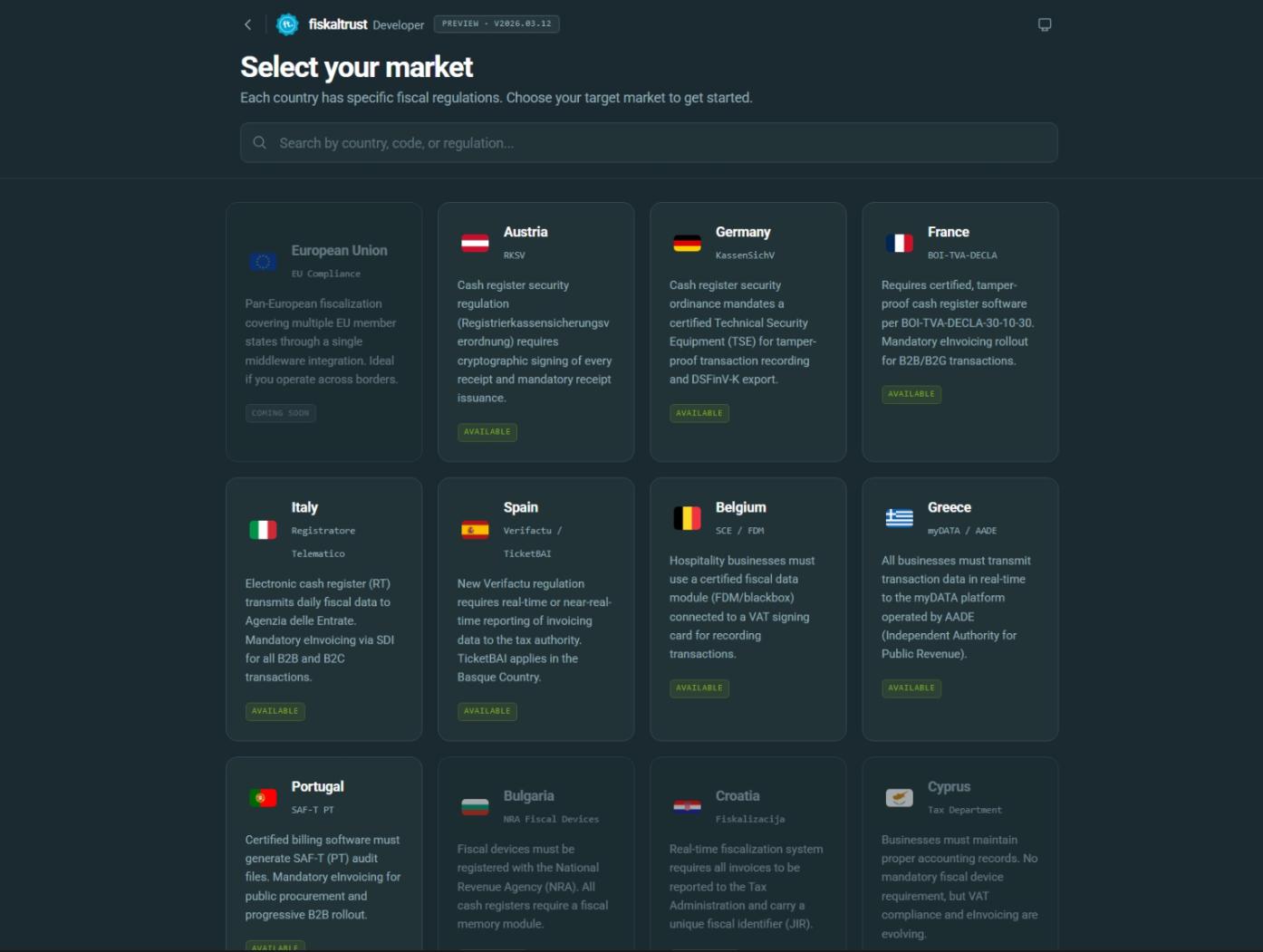
Select your market.
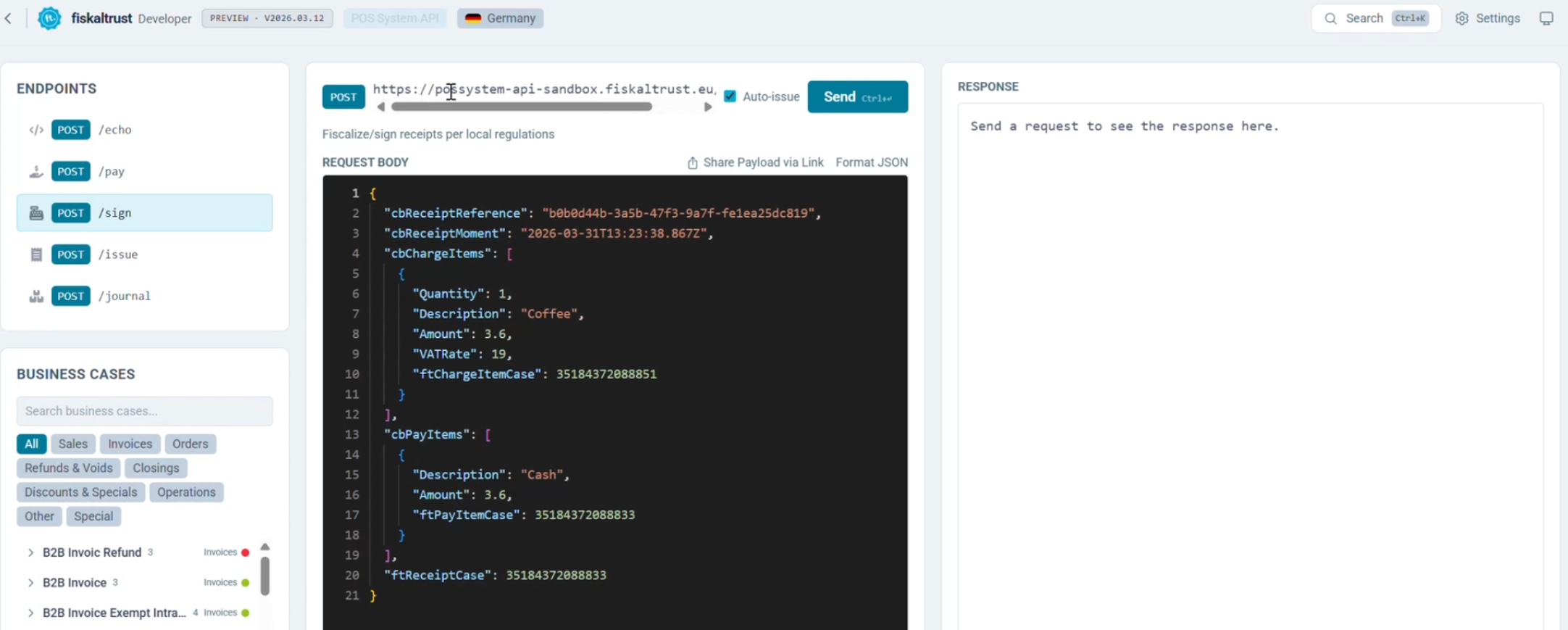
Click Settings in the top-right corner.
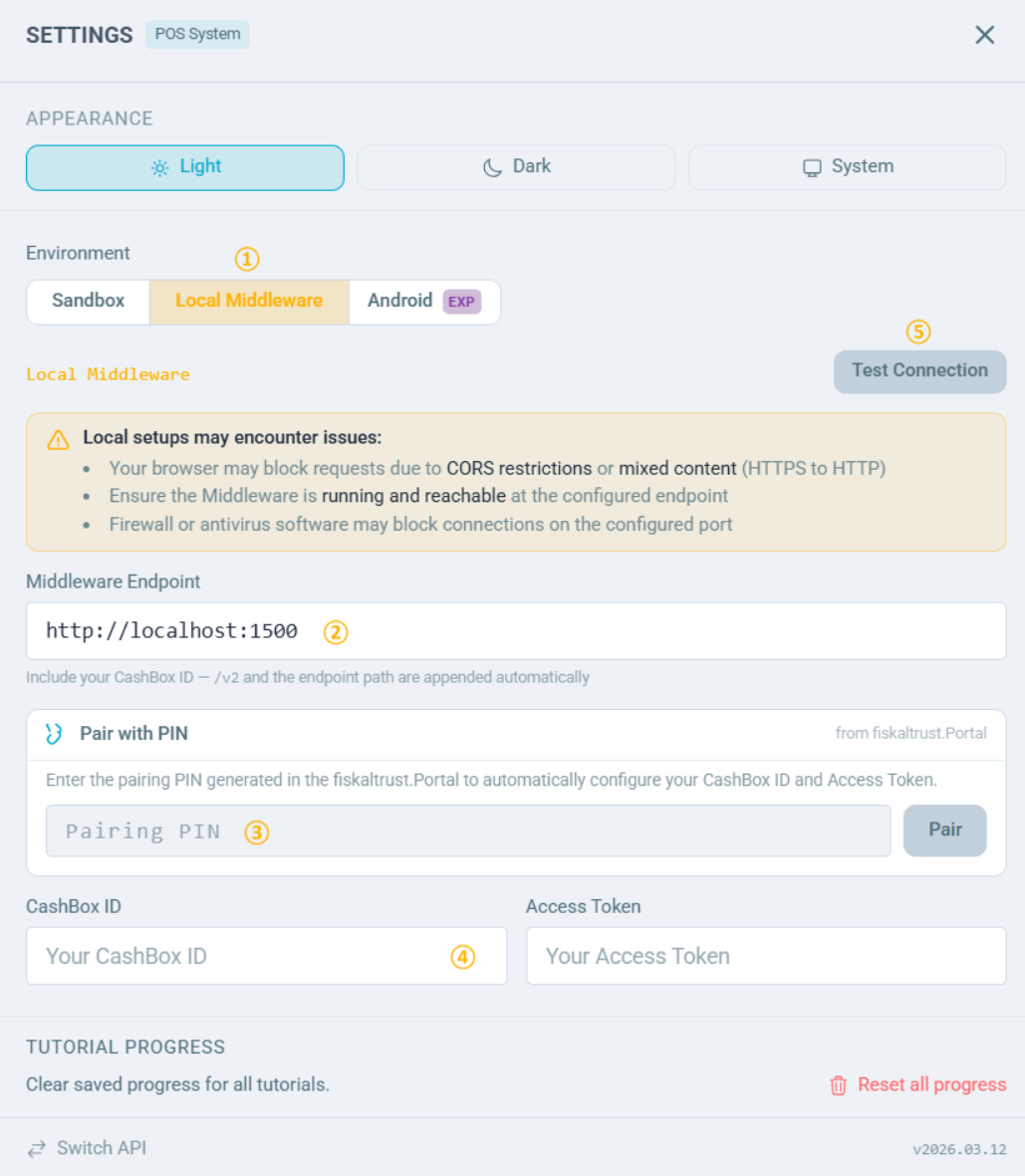
| steps | description |
|---|---|
| In the Environment section, select Local Middleware. |
| In the Middleware Endpoint field, enter the Helper URL found on the Configuration / CashBox page. |
| Copy the PIN from the Configuration / CashBox page, enter it in the field below, then click Pair. A confirmation message should appear as shown below. |

| steps | description |
|---|---|
| The CashBox ID and Access Token fields will be populated automatically. |
| Click Test Connection — a green 201 response confirms the Helper is working correctly. |
Close Settings. You can now use the available endpoints to send requests to the Middleware and verify the Helper's functionality.