Getting Started
To install the fiskaltrust InStore App and connect it to your cash register, complete the following steps.
Step 1: Install the app
Refer to the installation guides for detailed instructions.
Step 2: Start the app and grant permissions
- Once installed, launch the app.
- If prompted, enable the Display over other apps option (this allows the app to stay in the foreground while you work in other apps).
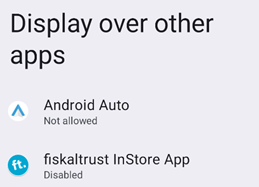
Figure 1. Enabling the Display over other apps permission for the InStore App.
If this option is disabled, a prompt appears asking you to enable it. Confirm the setting.
Step 3: Access the fiskaltrust Portal
- If you want to test your setup in the Sandbox environment, open the fiskaltrust Sandbox Portal for your country in your web browser.
- If you’re ready to go live in Production, use the Production Portal for your country.
Make sure to select the correct country in the portal to match your region.
Step 4: Select your Cashbox
In the portal, navigate to Configuration > CashBox and select your Cashbox. This is the virtual cash register you will connect to the app.

Figure 2. Selecting the CashBox in the fiskaltrust Portal Configuration.
Step 5: Copy the PIN for InStore App
In the CashBox overview, you will find your PIN for InStore App. This PIN is used to pair your app with the Cashbox. Example pairing PIN: 8639. Copy this code.

Figure 3. Location of the PIN for InStore App in the CashBox overview.
Step 6: Enter the PIN code in the app
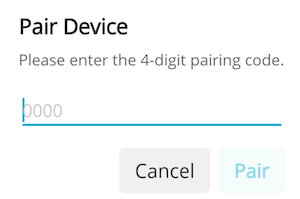
- Open the InStore App on your device and enter the previously copied pairing PIN into the designated field.
- Click Pair to connect the app to your CashBox.
*
Figure 4. Entering the pairing PIN in the InStore App to connect it to the CashBox.*
Once the pairing is successful, your app is connected to your CashBox and ready to use.
If you have any questions or encounter issues during installation, first check the following FAQ section for possible solutions. If you still need assistance, contact our support team at support@fiskaltrust.eu.
Frequently Asked Questions (FAQ)
Q: The printer is not showing up. What should I do?
- A: Ensure that Bluetooth is enabled on your device. The app requires Bluetooth to connect to the printer. You can check the Bluetooth settings in your device's settings menu.
Q: How can I reconnect the app to my Cashbox?
- A: If the connection between the app and the Cashbox is lost, open the fiskaltrust Portal again, copy the pairing PIN , and re-enter it in the app. This will re-establish the connection.
Q: The app isn't opening after installation. What should I do?
- A: Make sure that your device has sufficient storage and that all necessary permissions (e.g., storage access and Bluetooth access) are granted. Try restarting your device and reinstalling the app if necessary.
Q: I received an error message when pairing. What does it mean?
- A: This may indicate an issue with the pairing PIN. Double-check the code you entered. You can also try copying it again from the fiskaltrust Portal.
Q: How can I update the fiskaltrust InStore App?
- A: To ensure you have the latest version, revisit the download page and install the newest version. The app will automatically update when a new version is available.
Q: Can I use the app without an internet connection?
- A: Partly. An internet connection is always required for the initial configuration. Actions received via the fiskaltrust cloud backend require a permanent internet connection. Payments triggered via the optional local communication path (a POS app on the same device using the fiskaltrust Android launcher) also work offline. The Cloud and On device status icons on the home screen show which path is currently available. See the FAQ for details.
Q: The app is not responding or freezing. What should I do?
- A: If the app freezes or becomes unresponsive, try restarting the app on your device. If the issue persists, check for available updates or reinstall the app to ensure you are running the latest version.