Installing and Configuring Components
To operate the fiskaltrust.Middleware, whether on-premises or off-premises, you must first configure the required Middleware components in the fiskaltrust.Portal and then download and start the corresponding Launcher package.
Configuring Middleware Components
Before the fiskaltrust.Middleware can be installed and started, its components must be configured in the fiskaltrust.Portal for the target environment.
The available components and configuration options depend on the local fiscal regulations of the selected market.
Typical configuration tasks include:
- Defining the endpoints on which the Middleware listens for requests.
- Configuring the database used to store processed transaction data.
- Selecting the Signature Creation Unit (SCU) used for signing operations.
- Providing the connection settings required for the Middleware to communicate with the configured SCU and other services.
All components that belong to an on-premises Middleware installation are grouped in a CashBox configuration container.
Detailed information about market-specific configuration options can be found in the corresponding market appendices:
After completing the CashBox configuration, download the Launcher package for the configured CashBox. The Launcher contains the information required to start the fiskaltrust.Middleware with the selected configuration.
Download of the Launcher
After configuring the CashBox in the portal, download the Launcher package before installing and starting the Middleware.
In most markets, the Portal provides a single Download Launcher button. Clicking this button opens a dialog showing the launcher packages available for the selected CashBox configuration.
The launcher variants and platform availability described below currently apply only to Austria (AT), Germany (DE), and France (FR). Newer markets use the new launcher distribution model and may present different download options depending on the selected CashBox configuration.
| Icon | Launcher | Description | AT | DE | FR | IT |
|---|---|---|---|---|---|---|
 | .NET Launcher (default launcher) | For starting the Middleware on Windows with Internet connection. The launcher loads the configuration file and required packages from the fiskaltrust package server during startup. | supported | supported | supported | supported |
 | .NET Offline Launcher | For starting the Middleware on Windows without Internet connection. A static configuration and required packages for operation is included. The regular package update mechanisms are not supported with the offline launcher. | supported | supported | supported | supported |
 | Mono Launcher | For starting the Middleware on Linux/macOS with Internet connection. The launcher loads the configuration file and required packages from the fiskaltrust package server during startup. | supported | supported | supported | supported |
 | Android Launcher | For starting the Middleware on Android with Internet connection. Required packages for operation are already included. The launcher loads the configuration file from the fiskaltrust package server during startup. The configuration options are limited to keep the package sizes small. | supported* | supported* |
Table 1. Launcher package variants and their availability per market (AT, DE, FR, IT).
*Availability depends on the selected CashBox configuration. For more information, see the Android platform documentation.
The downloaded launcher package is provided as a ZIP archive. Extract the archive before use. The extracted folder can be moved or renamed if required.
The folder with the downloaded and unzipped launcher contains:
- the launcher executable (
fiskaltrust.exe), - three preconfigured
.cmdcommand files, - a file for the static configuration of the service named
fiskaltrust.exe.config, - the fiskaltrust.Middleware service represented by the
.dllfiles.
Windows, Linux & MacOS
Launcher configuration
In the fiskaltrust.Portal, the components of the fiskaltrust.Middleware have been configured via CashBox configuration for the environment where the Middleware should be operated, e.g. which database should be used to store the receipt data.
The downloaded Launcher can now be optionally adapted for the local machine; e.g. setting the target folder for the data storage of the service, or setting the service name. This can be done by either using call parameters when executing the fiskaltrust.exe, or by directly modifying the fiskaltrust.exe.config by adding the appropriate key-value pairs in the section appSettings.
The following call parameters are available with the launcher fiskaltrust.exe:
| Parameter | Description | Overwrites the values in the static configuration fiskaltrust.exe.config |
|---|---|---|
-cashboxid | Sets the CashBoxId. The value is a GUID in format 00000000-0000-0000-0000-000000000000. | yes |
-accesstoken | Sets the AccessToken for online communication | yes |
-useoffline | Sets the offline mode. The value is a boolean: true | false | yes |
-test | Executing as command line program. Basic information is provided in the console. Should be indicated as last parameter, if it is set in connection with others. | no |
-i | Install Windows service | no |
-u | Uninstall Windows service | no |
-servicename=[myservicename] | Sets the service name in connection with -i and -u | no |
-displayname=[mydisplayname] | Sets the service display name within the system control in connection with -i | no |
-description=[mydescription] | Sets the service description within the system control in connection with -i | no |
-servicefolder | Sets folder containing the service files. | yes |
-sslvalidation | Sets the certificate validation when connecting through SSL. The value is a boolean: true | false | yes |
-sandbox | Sets the environment to be used. The value is a boolean: true (sandbox) | false (production) | yes |
-packagesurl | Sets the url of the package server used to download the packages. | yes |
-logfile | Sets the file used to log the output messages. | yes |
-connectiontimeout | Sets the timeout (in seconds) for the HTTP/HTTPS call to download the configuration. | yes |
-connectionretry | Sets the number of trials to download the configuration. | yes |
-proxy | Sets the proxy server to be used to connect to the internet. The value can be used as follows: "address=xxx.xxx.xxx.xxx;username=test;password=pwd123". username and password are optional values. See Using a Proxy | yes |
-verbosity | Sets the level of debug-information in the logfile. The value is a string. Possible values are: Trace | Debug | Information | Warning | Error | CriticalSupported in the German market only! | yes. Use in the static configuration the key loglevel |
Table 2. Command-line parameters accepted by the fiskaltrust.exe launcher.
Starting the Launcher
Following options are available for executing the fiskaltrust.exe:
| Option | Description | Windows | Linux |
|---|---|---|---|
fiskaltrust.exe | Executing the launcher fiskaltrust.exe as a command line program using call parameters. | Run the command line cmd.exe as administrator.Example: fiskaltrust.exe -test | Example: sudo mono fiskaltrust.exe -test |
[pre-configured command file].cmd | Command files can be used for executing the fiskaltrust.exe with pre-defined setups, e.g. for developing and debugging. Three pre-configured setups are already included with the downloaded launcher (see below). | ||
install-service.cmd | Pre-configured command file which executes fiskaltrust.exe using the parameter -i for installing the fiskaltrust.Middleware as a service under Windows, recommended for permanent on-premise operation. | Run the command file install-service.cmd as administrator. For details, see Windows Service Installation | For installing the fiskaltrust.Middleware as a Daemon, see Mono service installation. |
uninstall-service.cmd | Pre-configured command file which executes fiskaltrust.exe using the parameter -u for un-installing the fiskaltrust.Middleware as a service under Windows. | Run the command file uninstall-service.cmd as administrator. | |
test.cmd | Pre-configured command file which executes fiskaltrust.exe using the parameter -test for starting the fiskaltrust.Middleware as a command line program under Windows, recommended for test and development purpose. | Run the command file test.cmd as administrator.For details, see Test Environment |
Table 3. Options for executing fiskaltrust.exe on Windows and Linux.
Applying the CashBox-configuration
During the start of the Online-Launcher (.NET Launcher or Mono-Launcher), the configuration is checked and the configuration-file (usually Configuration-00000000-0000-0000-0000-000000000000.json) including the needed packages are downloaded to the fiskaltrust service-folder (usually C:\ProgramData\fiskaltrust\service) if necessary.
When a new configuration shall be applied, the fiskaltrust service needs to be restarted so that the Launcher checks if a new configuration exists.
For checking the configuration and downloading the needed packages the Launcher must be able to contact the fiskaltrust packages-server:
Outbound traffic
| Type | Protocol | Port | Source |
|---|---|---|---|
| https | TCP | 443 | packages-sandbox.fiskaltrust.cloud |
| https | TCP | 443 | packages.fiskaltrust.cloud |
Table 4. Outbound connections the Launcher needs to reach the fiskaltrust package server.
Service folder
The data for the service, including
- the configuration,
- service packages,
- the local data storage for receipt data if a SQLite database is used, and
- data exports like DSFinV-K, TSE-TAR files,
is saved under Windows in C:\ProgramData\fiskaltrust\service.
In Linux, the data is saved under /usr/share/fiskaltrust/service.
The deletion of this folder results in a loss of data, and a loss in functionality of the fiskaltrust.SecurityMechanism. In case of an active online connection, the fiskaltrust.SecurityMechanism can restore its functionality without this folder, however the data which was lost cannot be restored.
Test Environment
For development, integration and testing purpose we recommend to run the Middleware in the command line.
In Windows, it is necessary to run the cmd.exe as administrator. The launcher fiskaltrust.exe can be then executed as a command line program through the call parameter –test.
In Linux, the following command should be used:
sudo mono fiskaltrust.exe -test -cashboxid <cashboxid> -accesstoken <accesstoken> <other options>.
A static configuration can be enforced via the configuration.json file in the fiskaltrust.exe folder in connection with -useoffline=true.
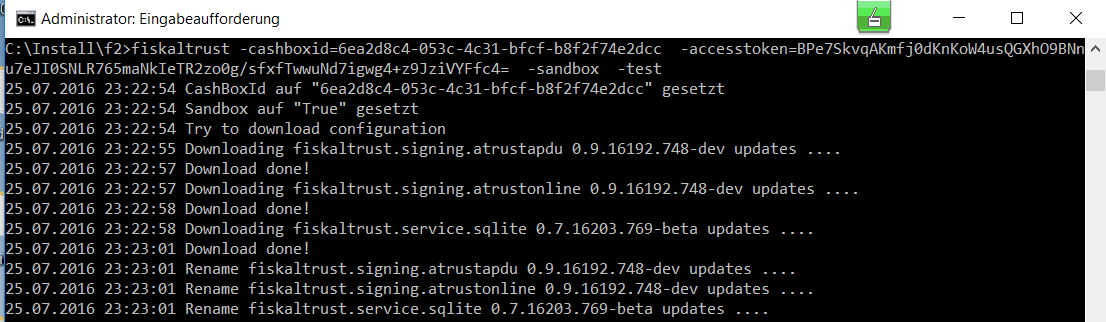
Figure 1. Console output of the fiskaltrust.Middleware running in test mode.
Windows Service Installation
The Windows service can be installed and uninstalled via the call parameters -i and –u.

Figure 2. The fiskaltrust service shown in the Windows Services console.
Once successfully completed, the service will appear in the list of running services.
Mono Service Installation
For Linux, the fiskaltrust.SecurityMechanism can be installed as Daemon.
Mono is the prerequisite, and can be installed following the manual of the mono-project (install complete). Also the mono-service utility needs to be installed (On Ubuntu this can be done using the command sudo apt update && sudo apt install mono-4.0-service).
Once the installation is completed, a file named fiskaltrust with the following content has to be saved in the index /etc/init.d:
#! /bin/sh
### BEGIN INIT INFO
# Provides:     fiskaltrust
# Required-Start:  $local_fs $network
# Required-Stop:   $local_fs $network
# Default-Start:   2 3 4 5
# Default-Stop:   0 1 6
# Short-Description: fiskaltrust.Sicherheitseinrichtung
### END INIT INFO
# /etc/init.d/fiskaltrust
#
#
#rechte: sudo chmod +x /etc/init.d/fiskaltrust
#rechte: sudo chmod +x /etc/fiskaltrust/fiskaltrust.exe
#installieren: sudo update-rc.d fiskaltrust defaults
#deinstalllieren: sudo update-rc.d -f dispenser1 remove
#
#
#
#

# Some things that run always
# Load the VERBOSE setting and other rcS variables
. /lib/init/vars.sh

# Define LSB log_* functions.
# Depend on lsb-base (>= 3.2-14) to ensure that this file is present
# and status_of_proc is working.
. /lib/lsb/init-functions

# Carry out specific functions when asked to by the system
case "$1" in
 start)
  log_daemon_msg "Starting fiskaltrust.Sicherheitseinrichtung " "fiskaltrust"
  mono-service -l:/tmp/fiskaltrust.Sicherheitseinrichtung .lock -d:/etc/fiskaltrust/ /etc/fiskaltrust/fiskaltrust.exe
  log_end_msg $?
  ;;
 stop)
  log_daemon_msg "Stopping fiskaltrust.Sicherheitseinrichtung " "fiskaltrust"
  kill `cat /tmp/fiskaltrust.Sicherheitseinrichtung .lock`
  log_end_msg $?
  ;;
 *)
  echo "Usage: /etc/init.d/fiskaltrust {start|stop}"
  exit 1
  ;;
esac

exit 0
Code 13. Initializing the mono service
Next, the folders have to be created and assigned the required permissions. In order to do that, the following commands have to be executed via the SSH-console:
sudo mkdir /etc/fiskaltrust
sudo chmod 777 /etc/fiskaltrust
Once the folders are set, the fiskaltrust.exe and the associated DLLs must be copied into the index "/etc/fiskaltrust", and the rights to execute the file have to be set as follows:
sudo chmod +x /etc/init.d/fiskaltrust
sudo chmod +x /etc/fiskaltrust/fiskaltrust.exe
Finally, the daemon can be installed with the following command:
sudo update-rc.d fiskaltrust defaults
Once completed, the service should appear in the running daemon list.
Android
The fiskaltrust.Middleware for Android is currently available for the German market only. For more information about the platform specific installation, see the see the Android platform documentation.
Migration of the fiskaltrust.Middleware instance to a different hardware
We do not recommend to migrate an active instance of the fiskaltrust.Middleware to another hardware. If possible, set the queue out of operation, configure, and install a new Middleware instance on the new machine.